One of the crucial functionality provided by WESB is the protocol transformation or in other words "transport binding transformation".
In the example given below I have done mapping from SOAP/HTTP Web service binding to JMS binding.
Background:
Bindings can be defined on an import or export. On an export, they describe how a client or an SCA component communicates with the mediation module. On an import, they describe how the mediation module communicates with the defined service.
Server Runtime configuration:
Creating a new Destination (Queue)


After successful completion code & testing, to the message in queue follow the below steps:


In the example given below I have done mapping from SOAP/HTTP Web service binding to JMS binding.
Background:
Bindings can be defined on an import or export. On an export, they describe how a client or an SCA component communicates with the mediation module. On an import, they describe how the mediation module communicates with the defined service.
Server Runtime configuration:
Creating a new Destination (Queue)
- Run the administrative console and log in.
- Select Service integration -> Buses.
- Click the SCA.APPLICATION.xxxCell.Bus link. (xxx is either wid or esb)
- Under Destination resources on the right-click Destinations.
- We will see two predefined destinations, a topic, and a queue.
- Click New to create a new destination on the bus.
- The next screen shows four types of destination that can be specified. Select
- Queue and click Next.
- The queue attributes screen is displayed. Enter JMSImportOut as the identifier
- then click next & complete the queue attribute creation.

Creating a QCF & Queue
- Select Resources -> JMS Providers -> Default messaging.
- Under Connection Factories, click JMS queue connection factory, click New.
- Fill in the properties of the queue connection factory:
- Set the Name as sampleBindingQCF.
- Set the JNDI Name to jms/sampleBindingQCF.
- From the list for Bus name, choose SCA.APPLICATION.xxxCell.Bus.
- Click OK at the bottom of the screen.

- Select Resources -> JMS Providers -> Default messaging.
- On the right, under Destinations, click JMS queue and then click New.
- Create the queue.
- Set the Name to JMSImportOut.
- Set the JNDI Name to jms/JMSImportOut.
- Select SCA.APPLICATION.xxxCell.Bus from the Bus Name menu.
- Select JMSImportOut from the Queue Name menu.
- Click OK at the bottom of the screen.
- Click the Save link at the top of the console and confirm the changes to the master configuration by clicking Save.
After successful completion code & testing, to the message in queue follow the below steps:
- Select Service integration -> Buses -> SCA.APPLICATION.xxxCell.Bus -> Destinations -> JMSImportOut -> Queue points -> JMSImportOut@xxxNode.server1-SCA.APPLICATION.xxxCell.Bus.

- We can see the current message depth is 1, to see whats there in message,click the Messages link in Additional properties (right)
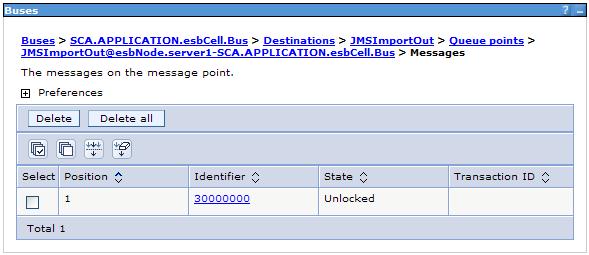
- Now click on Identifier link to see the message body.


